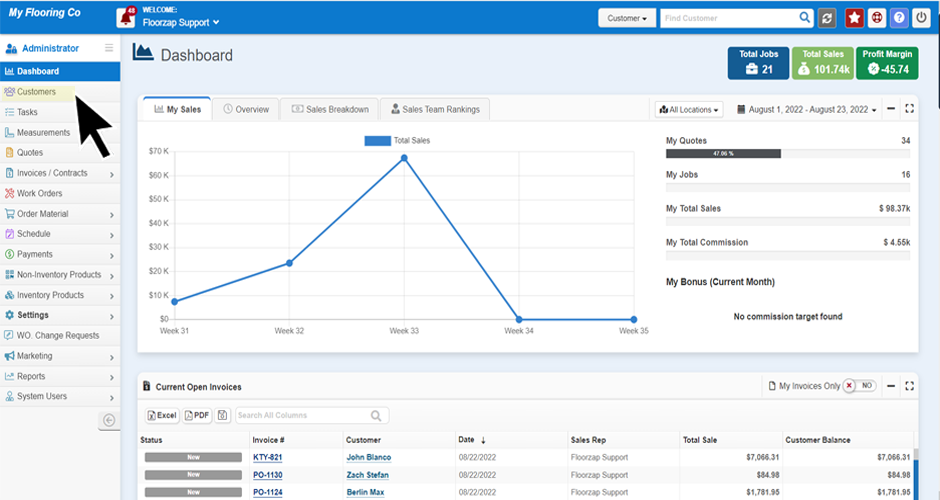
- Navigate to the customer tab from the home screen (dashboard) click on the customer tab on the menu on the left-side of the screen.
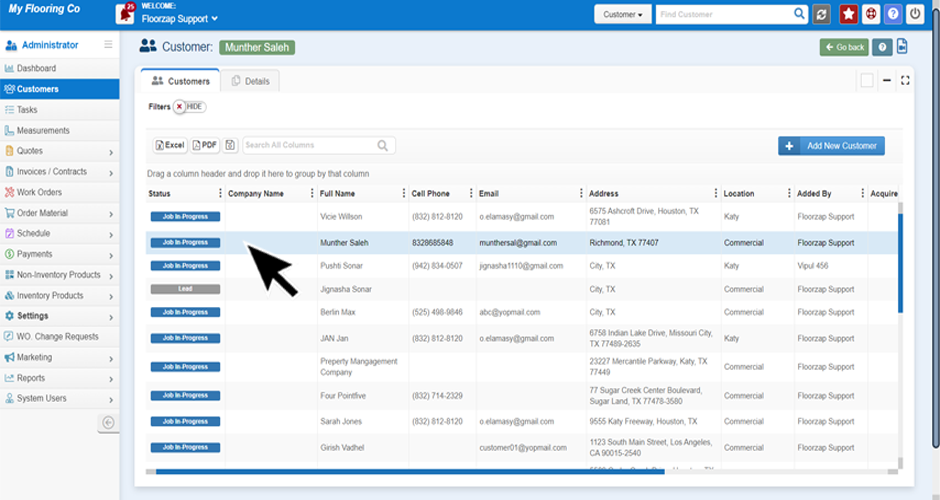
- From the customer page highlight the line of the customer you are looking to update.
- Select the “Details” tab from the top of the page.
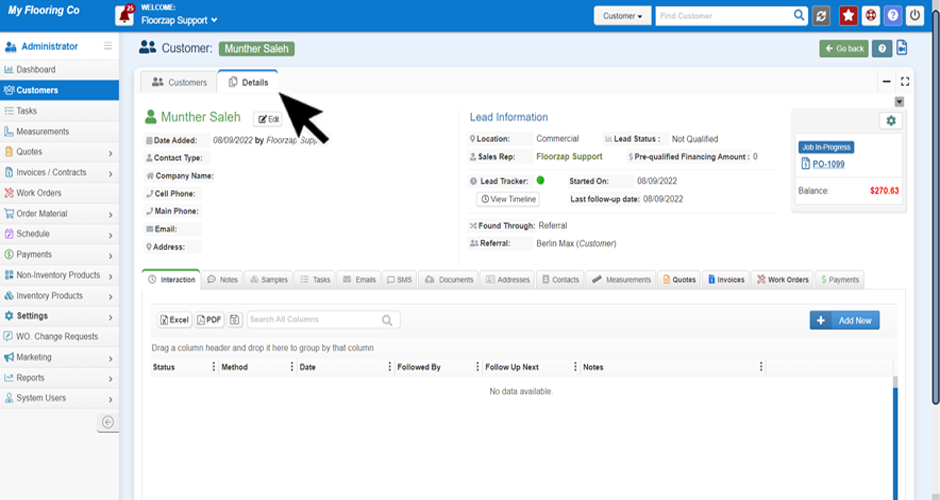
- Click on the “Addresses" tab from the center of the page.

- Click on the "Add New Address" button.

- Fill in the form with the new address you wish to add and then click save.

- Repeat steps 3-5 with any additional addresses you may wish to add.
Search Knowledge Base Articles
How to add multiple Addresses to a customer profile?
Did you find this article useful?
Related Articles
-
How Can I Access Customer Details?
1. To view any customers information in the Customer Detail view, simply click on the menu item on t... -
How do I add multiple contacts to a customer profile?
Navigate to the customer tab from the home screen (dashboard) click on the customer tab on the menu ...