- Navigate to the task menu by selecting the “task” button from the left-side menu on your dashboard.
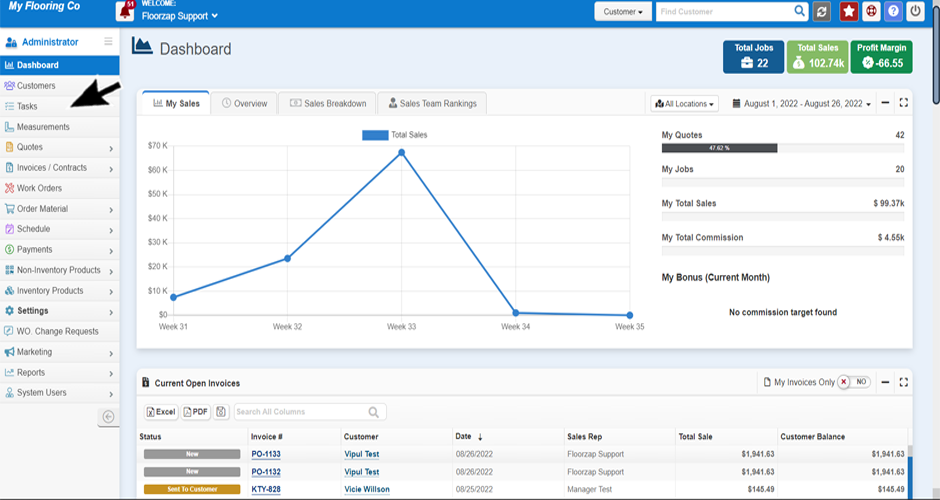
- Click on the “add new task” button on the right-hand side of your screen.
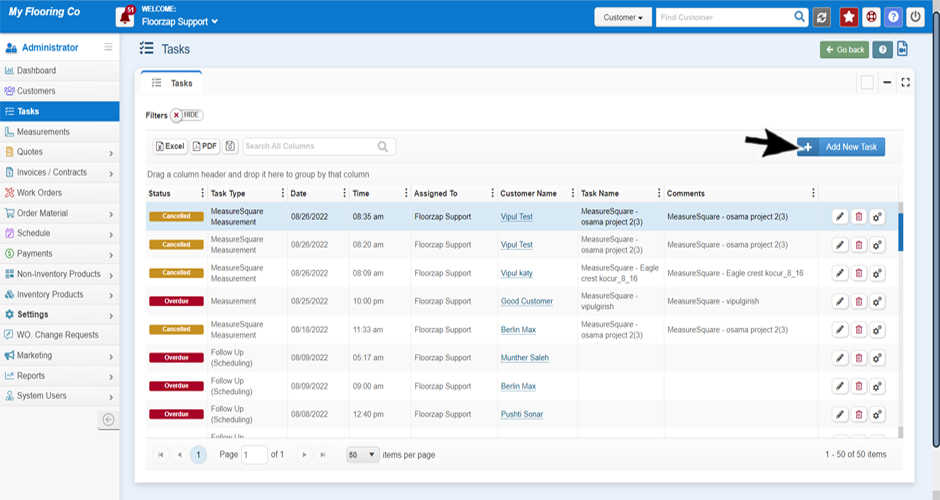
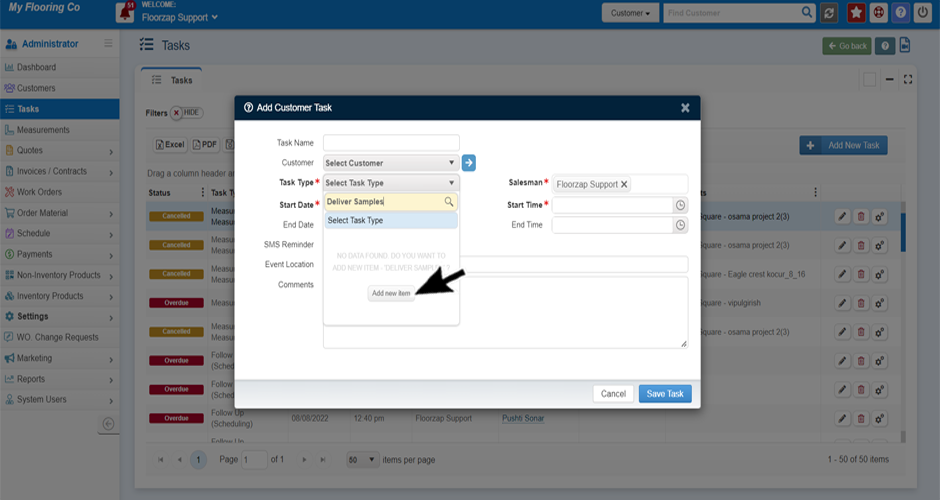
- Select the “task type” drop down menu.
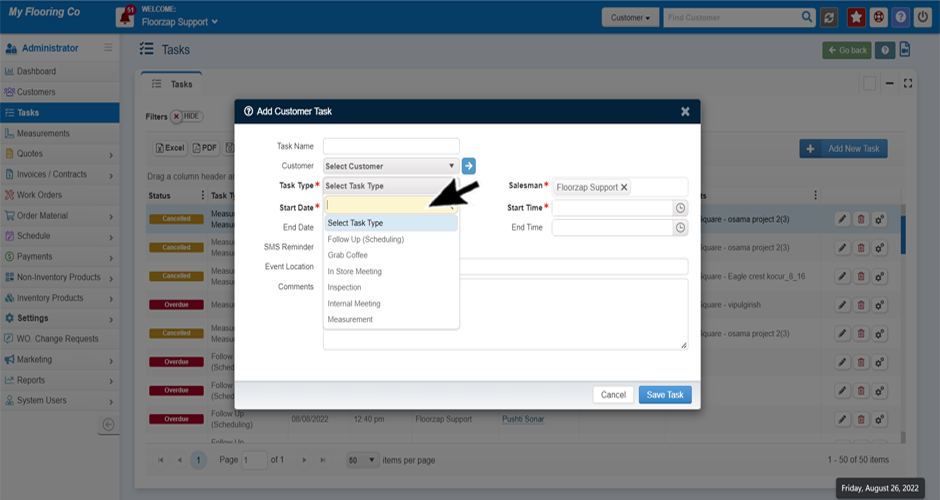
- Begin typing the name of the task you would like to add to the menu.
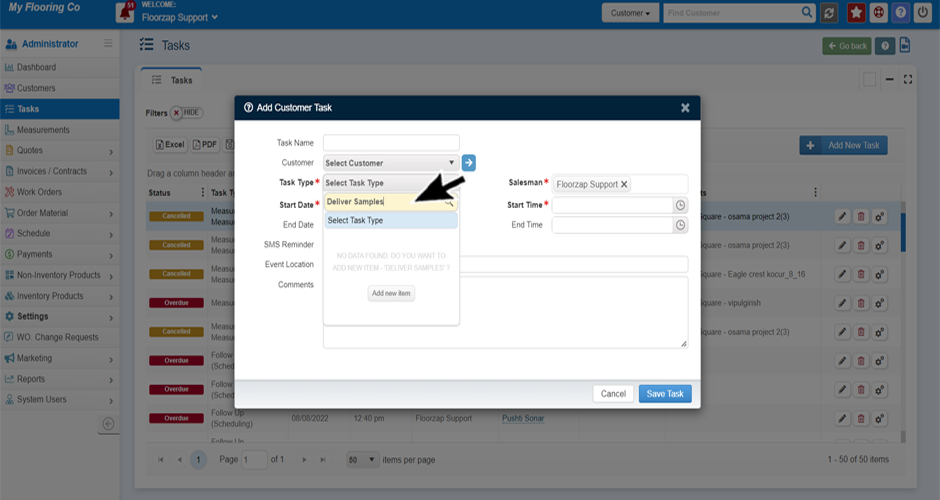
- As you type the new task type, a button will pop up that says “add new item," select that button to add new task type.
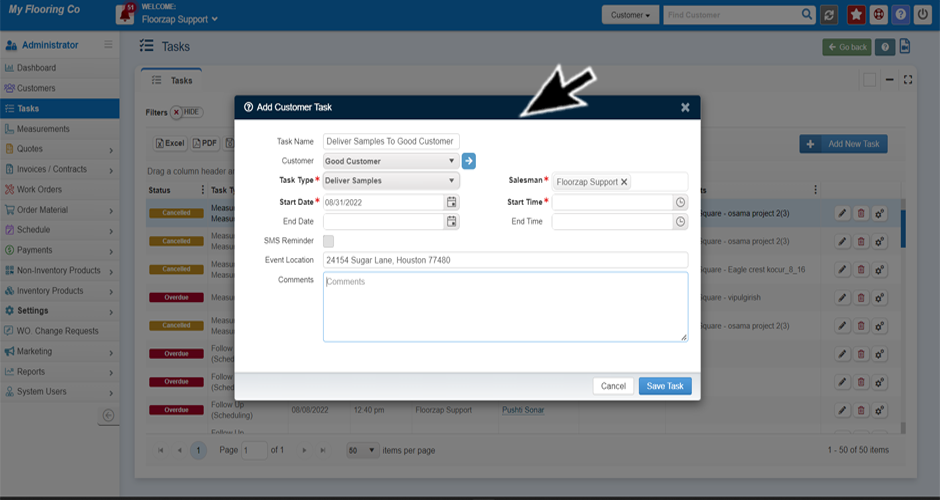
- Proceed to complete the rest of the fields in the task window.
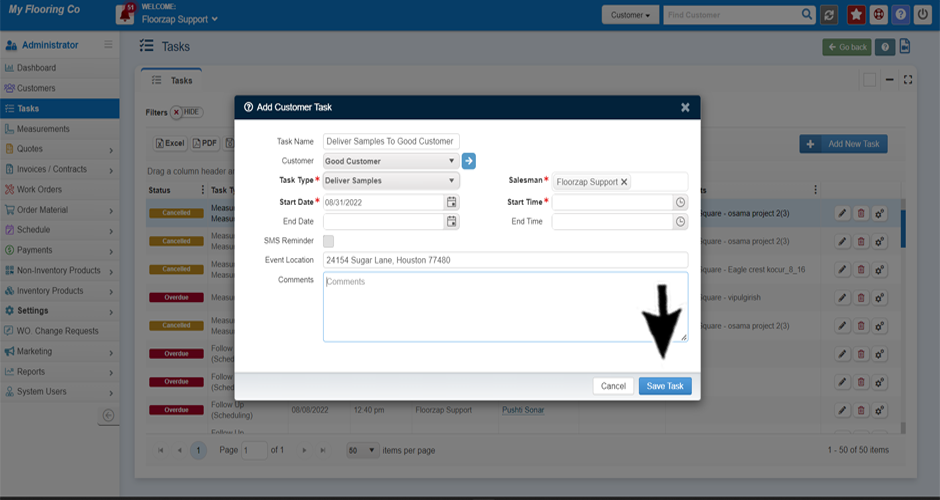
- Click save.
Search Knowledge Base Articles
How do I add a new type of task?
Did you find this article useful?
Related Articles
-
What Should I Name My Task?
You can use the task name as a simple reminder of what the task is about. Some customers use this fi... -
Is adding a customer to a task required?
No, you do not. You would want to connect a customer to a task that is part of your workflow for the... -
Creating your 1st Task
Navigate to the task menu by selecting the “task” button from the left-side menu on your... -
How do I set or adjust task reminders?
From the dashboard navigate to the settings menu by clicking on the “settings” tab on t... -
How do I send task email or sms reminders to a customer?
Navigate to the task menu by selecting the “task” button from the left-side menu on your...