- If you’re not already on the order materials by products screen navigate there by clicking on the “order by products” button, which is located under the “order materials” tab on the dashboard.
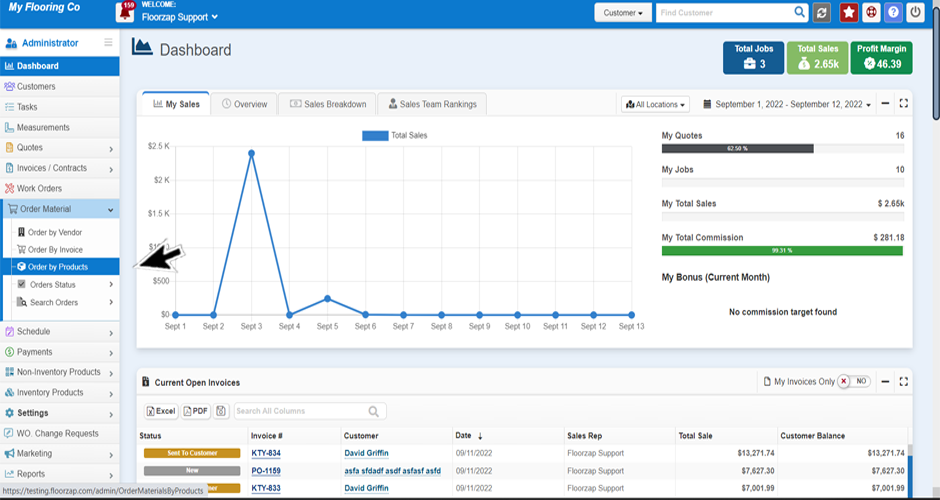
- Scroll through the products and find the product you are looking for, then click on the work order number that you are wishing to order for.

- Once you have clicked on that number you will be brought to the workorder screen.

- You will then click on the shopping cart icon that is located on the right side of the screen.

- Change the order status to “ordered.”

- Next you will fill in the order number field with the reference number provided to you by the vendor.

- Verify that the amounts listed are as expected. (Hint: Check the tax, freight, material cost and material invoice total)

- Click save to save all this information.

Search Knowledge Base Articles
How do I order materials by product?
Did you find this article useful?
Related Articles
-
How do I order materials by vendor?
If you’re not already on the “order materials” screen navigate there by clicking o... -
How do I cancel a vendor order?
If you’re not already on the “order materials” screen navigate there by clicking o... -
How do I order materials by an individual invoice?
If you’re not already on the order materials by invoice screen navigate there by clicking on t... -
How do I cancel a material order from the order products page?
If you’re not already on the order materials by products screen navigate there by clicking on ... -
What is the order status page for?
Here you can view all the products that have a status of “ordered”. You can sort by stat...